How to Get an Image URL for Your HTML img Tag
September 29, 2026 · GetImgURL
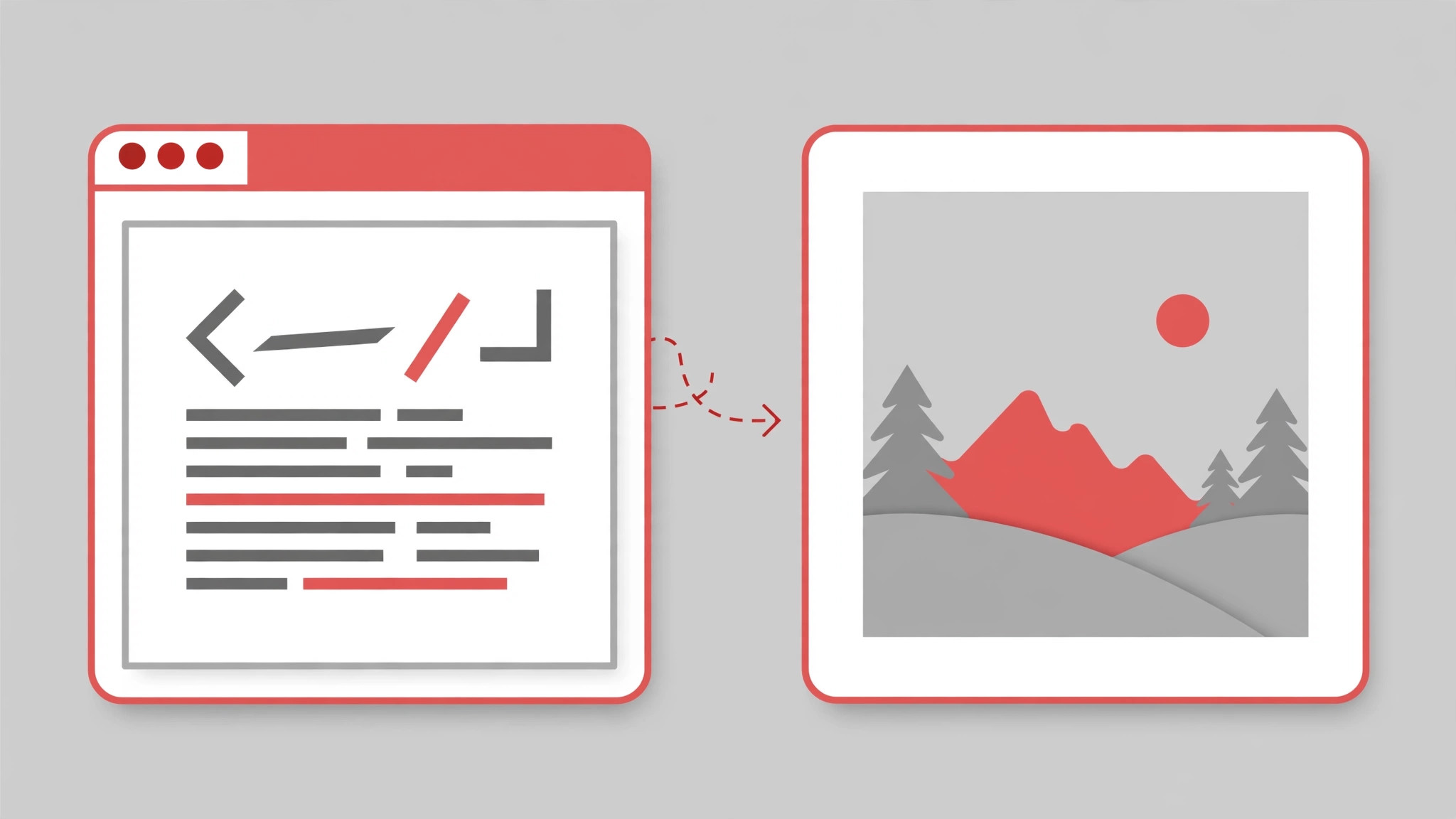
Every image on a webpage loads from a URL. If you are building a site, writing a blog post, or editing a template, you will eventually need an image URL for HTML — a direct link you can drop into an <img> tag. This guide shows you how to get one in seconds and use it correctly.
What the HTML img Tag Needs
The <img> tag displays an image using the src attribute, which must contain the image's URL:
<img src="https://example.com/photo.jpg" alt="A descriptive caption">
Two things matter here:
srcmust be a direct image URL — one that points to the image file itself (ending in.jpg,.png,.gif, etc.), not a gallery page or a preview screen.alttext describes the image — it helps screen readers, improves SEO, and displays if the image fails to load. Always include it.
How to Get an Image URL for HTML in 4 Steps
The fastest route is GetImgURL's free image to URL tool, which hands you an HTML-ready snippet automatically.
- Open the Photo to URL converter.
- Drag and drop your image (JPG, PNG, WEBP, or GIF up to 10MB) — or click to browse, or paste with Ctrl+V.
- After upload, click Copy on the HTML result. You will get a ready-made snippet like this:
<img src="https://your-image-link.jpg" alt="Your image description">
- Paste the snippet into your HTML where you want the image to appear. Update the
alttext to describe your specific image.
That is it — no hosting setup, no FTP, no account.
Writing the img Tag Yourself
If you already have a direct image URL, you can write the tag manually. A solid, modern <img> tag looks like this:
<img
  src="https://your-image-link.jpg"
  alt="Team photo from the 2026 product launch"
  width="800"
  height="600"
  loading="lazy"
>
A few best practices worth adopting:
- Always set
alt. Describe the image's content or function. For decorative images, an emptyalt=""is correct. - Add
widthandheight. This prevents layout shift — the page won't jump around while the image loads. - Use
loading="lazy". Images below the fold load only when the reader scrolls to them, speeding up your page.
A Note on Hotlinking
"Hotlinking" means embedding an image hosted on someone else's server. Two things to know:
- Only hotlink images you have rights to. Grabbing a random image URL from another site can break (if they block external embeds) and may violate their terms. When in doubt, upload the image yourself with a free converter so you control both the file and the link.
- Use a host that allows direct embedding. Some cloud storage links open a preview page instead of the raw file, which will not render inside an
<img>tag. A dedicated image-to-URL tool gives you a true direct link designed for embedding.
Optimizing Images Before You Embed
Page speed matters for both visitors and Google rankings. Before generating your image URL for HTML:
- Compress the file. Run it through the free compress image tool to cut kilobytes without visible quality loss.
- Resize to display size. A 4000px photo displayed at 800px wastes bandwidth. Use the resize image tool to match the dimensions.
- Pick the right format. JPG for photographs, PNG for graphics with sharp text, WEBP for the best size-to-quality ratio. Convert between them with the image converter.
Then upload the optimized file and grab your URL — your pages will load noticeably faster.
Responsive Images with srcset
A single image URL works, but modern sites serve different sizes to different screens. The srcset attribute lets the browser pick the right one:
<img
  src="https://your-image-link-800.jpg"
  srcset="https://your-image-link-400.jpg 400w,
          https://your-image-link-800.jpg 800w,
          https://your-image-link-1200.jpg 1200w"
  sizes="(max-width: 600px) 400px, 800px"
  alt="Team photo from the 2026 product launch"
  loading="lazy">
How to build this with GetImgURL:
- Resize your image to each target width with the resize image tool (400px, 800px, and 1200px).
- Upload each version to the image to URL tool and copy the three links.
- Plug them into
srcsetas shown above.
The browser then downloads only the size it needs — a phone gets the 400px file instead of the full 1200px one. This is one of the simplest performance wins you can get on image-heavy pages.
Frequently Asked Questions
How do I get an image URL for HTML without hosting?
Use a free tool like GetImgURL's image to URL converter. Upload the image, copy the HTML snippet, and paste it into your code. No server or hosting account needed.
Why is my image not showing in the img tag?
The most common cause is a non-direct URL — for example, a cloud storage preview page instead of the raw file. Make sure your src points straight to the image file (it should end in .jpg, .png, or similar).
Can I use the same image URL in multiple img tags?
Yes. One URL can be reused across as many pages and tags as you like — upload once, embed everywhere.
What image formats work in HTML img tags?
All modern browsers support JPG, PNG, GIF, and WEBP in <img> tags. WEBP usually gives the smallest file size for the same quality.
Get Your Image URL Now
Stop wrestling with hosting just to show a picture. Upload your image to the free Photo to URL converter, copy the HTML snippet, and your <img> tag is ready to go.
Try it right now — free, no sign-up
Upload an image and get a shareable link in seconds.
Convert image to URL