How to Convert a PDF to a URL: Get a Shareable PDF Link
September 29, 2026 · GetImgURL
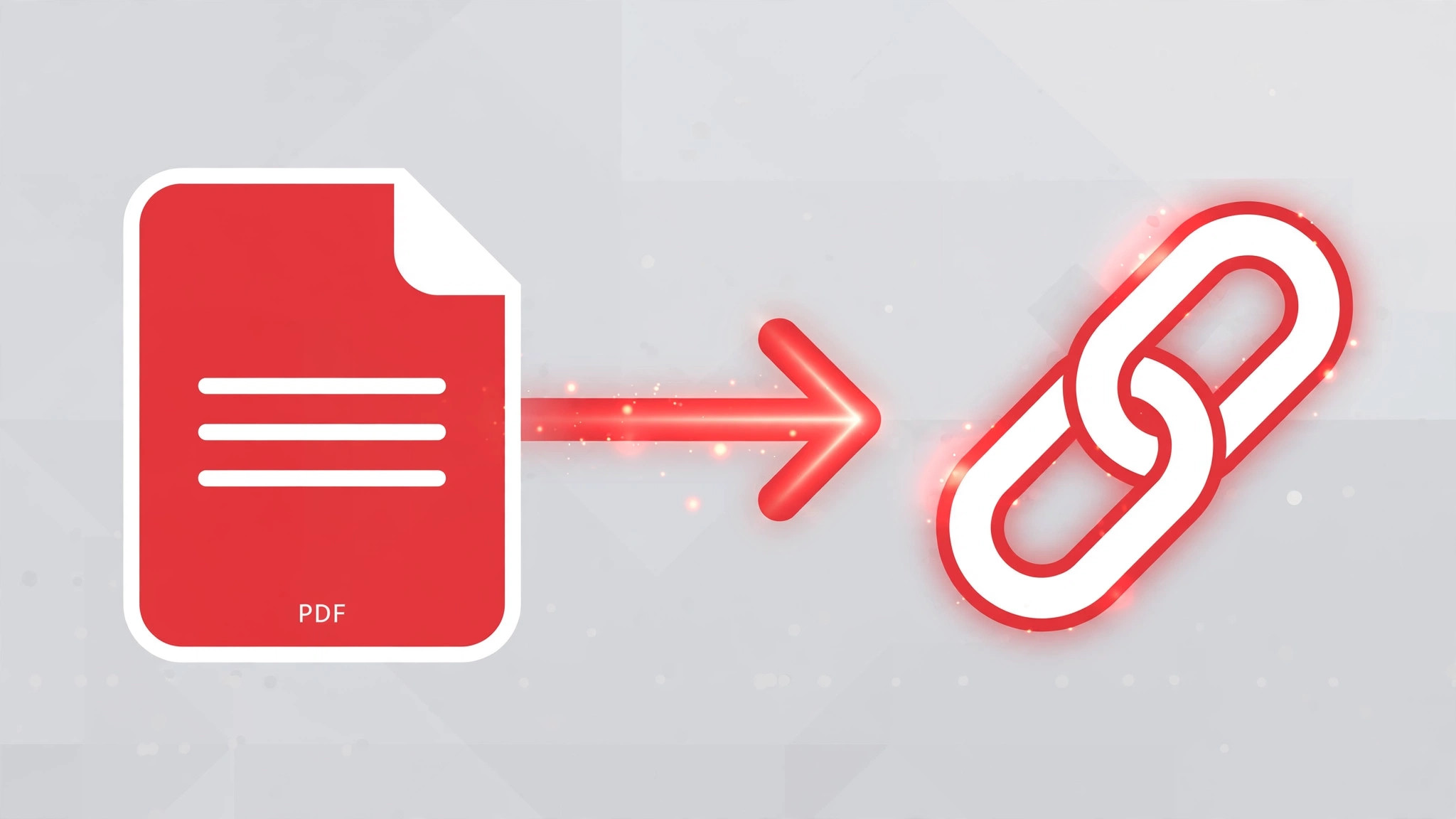
PDFs are everywhere — resumes, contracts, menus, brochures, ebooks — but sharing them is oddly painful. Email attachments bounce off size limits, messaging apps compress or mangle them, and "can you resend that file?" threads pile up. The fix is simple: convert your PDF to a URL and share a link instead of a file.
Why Share a PDF as a Link?
Turning a PDF into a URL changes how people receive it:
- No attachment limits. A link works regardless of file size caps on email providers.
- Instant preview. Recipients open the PDF right in their browser — no download, no special app.
- Works everywhere. Paste the link in an email, text message, chat app, social post, or QR code.
- Always the latest version. Update the file and share a fresh link instead of resending attachments.
Whether you're a freelancer sending a proposal or a restaurant sharing a menu, a PDF link is simply more professional than a 9MB attachment.
How to Convert a PDF to a URL in 3 Steps
Step 1: Upload your PDF
Go to GetImgURL's free PDF to URL tool. Drag and drop your PDF into the upload area or click to browse your files. PDFs up to 10MB are supported, and there's no account or signup — just upload.
Step 2: Copy your PDF link
The moment your upload finishes, you'll get a direct URL pointing to your PDF. You can also copy it as an HTML link snippet, ready to paste into a webpage or email.
Step 3: Share it anywhere
Send the link by email, text, or chat, post it on social media, or embed it on your website. Anyone who clicks it can view your PDF instantly in their browser.
Great Uses for a PDF Link
- Resumes and portfolios. Put the link on your LinkedIn profile, personal site, or job application instead of attaching the file.
- Business documents. Share proposals, invoices, and contracts with clients in one click.
- Menus and brochures. Restaurants, salons, and shops can print the link as a QR code or post it on social media.
- Ebooks and guides. Authors and educators can distribute a PDF with a simple link rather than a download portal.
- Event flyers. Promote an event by dropping the flyer link into community groups and chats.
If you also work with images, you can create image links for email the same way — skip attachments entirely.
Tips for Sharing PDFs as Links
Keep it under 10MB. If your PDF is too large to upload, try exporting it with lower-resolution images from your PDF editor, or split it into smaller documents. Most resumes, menus, and brochures compress well under the limit.
Name your file clearly before uploading. A descriptive filename (like spring-menu-2026.pdf) looks more trustworthy in a shared link than document-final-v3.pdf.
Don't share sensitive documents this way. Anyone with the link can open the PDF, so avoid uploading contracts with personal data, financial records, or anything confidential.
PDF Link vs Google Drive / Dropbox Link
Cloud storage links work, but they come with friction:
| PDF to URL link | Drive/Dropbox link | |
|---|---|---|
| Account needed to share | No | Yes — you need an account |
| Recipient experience | Opens the PDF directly | Often lands on a preview or login page |
| Setup time | Seconds | Upload, set permissions, copy link |
| Permission mistakes | None possible | "Request access" emails when sharing is misconfigured |
Anyone who's clicked a Drive link only to hit "Request access" knows the pain. A direct PDF link skips permissions entirely.
Sharing Your PDF Link on Different Platforms
Email. Paste the link in the body with a line like "Here's the proposal:" — no attachment, no bounce-backs.
Texting and WhatsApp. Links unfurl into a neat preview on most messaging apps — far nicer than sending the raw file.
LinkedIn and social media. Drop the link in a post or your profile's featured section so recruiters and clients can open your resume or portfolio instantly.
Your website. Use the HTML snippet to add a "Download our brochure" link that opens the PDF in a new tab.
Preview before you share. Open the link yourself in an incognito window first — you'll see exactly what your recipient sees and catch any formatting surprises before they do.
Frequently Asked Questions
Do recipients need special software to open the PDF link?
No. Modern browsers — Chrome, Safari, Firefox, Edge — open PDFs natively. The recipient just clicks the link and reads.
Will my PDF keep its formatting?
Yes. The exact file you upload is what people see, so fonts, images, and layout stay intact.
Can I convert a scanned PDF or one with images?
Yes. Any valid PDF up to 10MB works, whether it's text-based, scanned images, or a mix of both.
Is converting a PDF to a URL free?
Yes. GetImgURL's PDF to URL tool is completely free with no account required.
Can I share the PDF link on social media?
Yes. Paste the link into any post, bio, or message — most platforms will show a clickable link, and some will render a preview of the document.
Share Your PDF as a Link Today
Stop wrestling with attachment limits. Upload your PDF, copy the link, and share your document anywhere in seconds.
Convert your PDF to a URL now — free, no signup needed.
Try it right now — free, no sign-up
Upload an image and get a shareable link in seconds.
Convert image to URL